
Set up your wireless gaming headset by identifying its connection type, pairing it with your PC or console, and testing both playback and microphone input. This guide is for first-time headset owners and anyone replacing or reconnecting a headset; basic menu navigation is all you need. Allow 15-30 minutes, including time to charge the headset and check the sound settings.

Get the latest gadgets delivered free — and shop member deals
- Fast, free delivery on millions of items
- Access to Prime Big Deal Days deals on October 6–7
- Prime Video, Amazon Music and more included

Turtle Beach Stealth 600 Wireless Gaming Headset for Xbox, PS5, PC, Mobile
- ✔ Connectivity: 2.4GHz wireless and Bluetooth 5.2
- ✔ Battery life: Up to 80 hours
- ✔ Drivers: 50mm Nanoclear
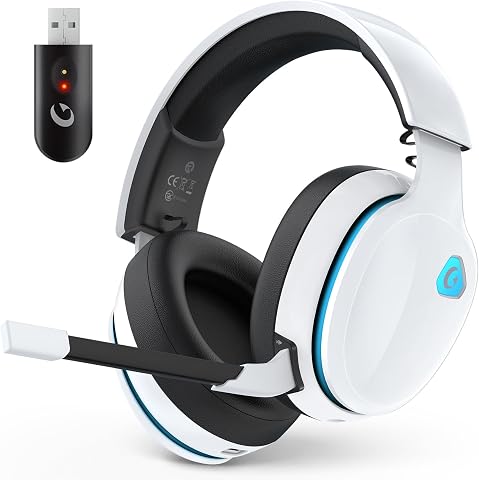
AOC Wireless Gaming Headset for PS5, PS4, PC, Switch, 45Hr, White
- ✔ Connectivity: 2.4GHz USB dongle, Bluetooth 6.0, and 3.5mm cable
- ✔ Battery life: Up to 45 hours
- ✔ Charging time: 3 hours

Ozeino Wireless Gaming Headset for PS5, PC, Switch, Lossless Audio, 40H Battery
- ✔ Connection: 2.4GHz USB and Bluetooth
- ✔ Latency: Under 30ms, as specified
- ✔ Battery life: Up to 40 hours
Difficulty: Beginner | Time: 15-30 minutes
What You’ll Need
Tools & Materials:
- Wireless gaming headset and its charging cable
- USB wireless transmitter or dongle, if supplied
- PC, PlayStation, Xbox, Nintendo Switch, or other compatible device
- Internet access for optional firmware or driver updates
Knowledge:
- Basic use of your device’s settings and audio menus
- Ability to identify the headset’s power, pairing, and mute controls
Check the headset manual or manufacturer product page for supported platforms and connection methods before you start. A USB transmitter that works on one console may not work on another. Bluetooth support also varies: many gaming headsets use a dedicated USB transmitter for game audio, while some Xbox headsets require a model specifically marked as Xbox-compatible or use Xbox Wireless. Charge the headset enough to complete setup, and keep the transmitter, console, and headset close together for initial pairing.
Turtle Beach Stealth 600 Wireless Gaming Headset for Xbox, PS5, PC, Mobile
The Turtle Beach Stealth 600 earns the top spot by addressing the biggest practical hurdle in this group: using one wireless headset across different gaming platforms. Its listed compatibility covers Xbox, PlayStation, PC, and mobile, while 2.4GHz wireless and Bluetooth 5.2 give us distinct routes for gaming and phone connections. QuickSwitch is intended to make moving between those wireless modes easier, which is more useful to a multi-device player than a long feature list without a clear switching purpose.Battery life is its strongest numerical advantage: the stated 80-hour runtime is well above the AOC’s 45 hours and Ozeino’s 40. That can reduce charging interruptions for frequent players, although actual runtime depends on use. Turtle Beach also lists 50mm Nanoclear drivers, a flip-to-mute microphone with AI noise reduction, and a glasses-friendly adjustable design. Compared with the detachable mic on AOC, the flip-to-mute arrangement is convenient when we want to silence the mic without removing it.The compromise is setup. The Swarm II app offers customizable audio settings, but buyers who want a simple plug-in experience may find advanced adjustment work more involved. The supplied description also flags possible connectivity issues when several devices are involved, so QuickSwitch should not be mistaken for a guarantee of effortless simultaneous use. We would choose this over the narrower Ozeino when Xbox support matters, and over AOC when long battery life and stated platform breadth take priority. Skip it if software customization sounds like unnecessary friction or if we need a clearly documented simultaneous multi-device connection.
Pros:
- Stated 80-hour battery life with quick charging
- 2.4GHz wireless and Bluetooth 5.2 with QuickSwitch
- Listed support for Xbox, PlayStation, PC, and mobile
- Glasses-friendly adjustable design and flip-to-mute microphone
Cons:
- Advanced audio customization may require time in the Swarm II app
- Multiple-device connectivity may be less straightforward
Best for: Players who want one headset listed for Xbox, PlayStation, PC, and mobile, with long battery life and both 2.4GHz wireless and Bluetooth.
Not ideal for: Buyers who want minimal app setup, or who require confirmed seamless connections to several devices at once.
Bottom line: We recommend the Stealth 600 as the most balanced choice here when broad platform support and long battery life matter more than a simple setup.
“We recommend the Stealth 600 as the most balanced choice here when broad platform support and long battery life matter more than a simple setup.”
AOC Wireless Gaming Headset for PS5, PS4, PC, Switch, 45Hr, White
The AOC Wireless Gaming Headset is the connection-options pick. It lists 2.4GHz through a USB dongle, Bluetooth 6.0, and 3.5mm wired audio, giving us a fallback if wireless is inconvenient or a device needs a cable. That makes it more adaptable on paper than the Ozeino, which also offers wired audio but lists fewer connection details, and it gives us another route beyond the Stealth 600’s two wireless modes.For gaming, AOC’s 2.4GHz mode is described as low-latency and suitable for synchronized sound and communication. Its stated 45-hour battery life lands between the Turtle Beach’s 80 hours and Ozeino’s 40, so it offers a reasonable middle ground in the supplied figures. The detachable, noise-canceling omnidirectional microphone may appeal to players who also want a cleaner headset for music or general use when the mic is removed. Memory-protein earmuffs and a closed-back over-ear design are listed, though we are not given a weight figure to assess how it may feel during long sessions.Its key limitation is that connection modes are not interchangeable across every platform: the description says Bluetooth audio is not supported on PS5 or PS4. Buyers using those consoles should plan around the USB dongle or wired connection rather than assuming Bluetooth will work for game sound. The removable mic is also less convenient than Turtle Beach’s flip-to-mute design if we frequently need to silence and resume voice chat. AOC makes more sense than Ozeino when wired fallback and detachable-mic flexibility matter; the Stealth 600 is the better fit when Xbox breadth and battery endurance lead the decision.
Pros:
- 2.4GHz, Bluetooth 6.0, and 3.5mm audio connections
- Stated battery life of up to 45 hours
- Detachable noise-canceling omnidirectional microphone
- Memory-protein earmuffs and closed-back over-ear design
Cons:
- Bluetooth audio is not supported on PS5 or PS4
- Detachable microphone may be less convenient for frequent muting
- Weight is not specified
Best for: Players who want several connection methods, including a 3.5mm fallback, and prefer a microphone they can detach for non-gaming use.
Not ideal for: PS5 or PS4 players who expect Bluetooth audio, or buyers who want a flip-up mic rather than a removable one.
Bottom line: Choose AOC when connection flexibility and a removable microphone matter more than Bluetooth audio on PlayStation consoles.
“Choose AOC when connection flexibility and a removable microphone matter more than Bluetooth audio on PlayStation consoles.”
Ozeino Wireless Gaming Headset for PS5, PC, Switch, Lossless Audio, 40H Battery
The Ozeino Wireless Gaming Headset is the most focused choice for players whose priority is a responsive wireless link on a supported setup. It specifies a 2.4GHz USB connection with latency under 30ms, which is aimed at keeping game audio aligned with on-screen action. Its 50mm drivers and intuitive controls round out a conventional gaming-first approach. Compared with the more connection-rich AOC, Ozeino’s appeal is less about having every fallback and more about the stated low-latency mode and a clear set of core gaming features.Its 40-hour battery life is substantial in the listed specifications, though it is shorter than both alternatives: AOC states up to 45 hours, and Turtle Beach states up to 80. Ozeino supports a USB wireless connection and Bluetooth, plus 3.5mm wired mode, and lists PS5, PS4, PC, Mac, Switch, and laptops among compatible devices. That looks broad at first, but the mode-specific caveats matter. Bluetooth is not compatible with Mac, PS5, PS4, or PC without an extra adapter, and the headset is not compatible with all Xbox consoles.Those restrictions make Ozeino a weaker choice for someone expecting Bluetooth to work universally or wanting one headset for an Xbox-and-PlayStation household. Some devices may also require assembly of the USB transmitter, adding a setup step that the description does not spell out in detail. We would place it ahead of AOC only for a buyer who values the specified latency and has verified their device works with the intended connection. For broader cross-platform use, the Stealth 600 is the safer recommendation; for a 3.5mm fallback and detachable mic, AOC has the more distinctive case.
Pros:
- 2.4GHz connection specified at under 30ms latency
- Stated battery life of up to 40 hours
- USB wireless, Bluetooth, and 3.5mm wired modes
- Intuitive controls and listed support for several gaming platforms
Cons:
- Bluetooth compatibility has significant device-specific limits
- Not compatible with all Xbox consoles
- USB transmitter may require assembly for some devices
Best for: Players on a supported PS5, PS4, PC, Mac, or Switch setup who prioritize a stated low-latency 2.4GHz connection and simple gaming controls.
Not ideal for: Buyers who need Bluetooth audio on PS5, PS4, PC, or Mac without an adapter, or dependable compatibility across Xbox consoles.
Bottom line: Ozeino is a sensible gaming-first option when its exact connection requirements match our setup, but it is less flexible than the top-ranked Turtle Beach.
“Ozeino is a sensible gaming-first option when its exact connection requirements match our setup, but it is less flexible than the top-ranked Turtle Beach.”
As an Amazon Associate we earn from qualifying purchases.
Before You Start
Turn the headset off before connecting its transmitter. If you use a wireless USB dongle, plug it directly into the gaming device rather than a hub for the first test. Disconnect other headsets or audio devices that could be selected by default. Do not assume that a headset is connected just because its power light is on; you must confirm the transmitter or Bluetooth link and select the headset as the audio output.
For Bluetooth, put the headset into pairing mode using the manufacturer’s instructions. A normal power-on is not always pairing mode. Keep the headset within a few feet of the device during setup, and avoid pairing it to several devices at once if it switches connections automatically.
Step-by-Step Instructions
Step 1: Check compatibility and connection type
Find the headset model number on its packaging, label, or companion app. Check the manufacturer’s compatibility list for your exact PC or console, then identify whether the headset connects by USB transmitter, Bluetooth, Xbox Wireless, or a console-specific wireless method. Follow the manual’s connection instructions for that platform. If the headset includes a transmitter with a PC/console switch, set the switch to the position for your device before connecting it.
Tip: A headset can power on and still be incompatible with a console. Confirm support before troubleshooting pairing.
Check: You know the supported connection method for your device and have selected the correct transmitter mode, if applicable.
Step 2: Charge the headset
Connect the headset to its charging cable and a suitable USB power source. Check the manual or headset indicator for the meaning of its charge lights. Let it charge until the battery indicator shows a usable charge; if the battery is nearly empty, give it at least 15 minutes before continuing. Unplug it if the manufacturer advises against using it while charging.
Tip: A low battery can cause pairing to fail, audio to cut out, or the headset to shut down during testing.
Check: The headset powers on and its battery indicator no longer signals critically low charge.
Step 3: Connect the transmitter or start Bluetooth pairing
For a USB transmitter, insert it into a USB port on the PC or console, then power on the headset. Wait for the headset and transmitter indicators to show a connection; use the manual’s pairing procedure if they do not pair automatically. For Bluetooth, open your device’s Bluetooth settings, put the headset into pairing mode, and select its exact name from the available-device list. Accept any pairing prompt and wait for the connected status.
Tip: Do not press and hold the pairing button for an extended period unless the manual instructs you to; some headsets use a long press for a reset instead.
Check: The transmitter and headset show a connected state, or the headset appears as connected in the device’s Bluetooth settings.
Step 4: Select the headset for game audio
Open the sound or audio settings on your gaming device. On a PC, select the headset or its USB transmitter as the output device; if the headset creates separate game and chat outputs, choose the game output for general playback. On a console, open its audio-device settings and select the headset or USB audio device when available. Start a game or play a test sound, then raise the headset volume gradually using its dial or buttons.
Tip: Some consoles route audio automatically when a compatible headset connects. Still check the audio menu if sound continues through the TV.
Check: Game or system audio comes through the headset, and the volume controls change its loudness.
Step 5: Set the microphone input
Open the microphone or input settings on your PC or console and choose the headset microphone. Check that the headset’s physical mute switch is off. Speak at a normal volume while watching the input meter or using the device’s microphone test; adjust input level if the meter barely moves or consistently reaches its maximum. If you use a boom microphone, position it close to the corner of your mouth without touching your lips.
Tip: Some headsets mute when the boom is raised. Lower it into its working position before testing.
Check: The input meter responds clearly to your voice, and a recording or voice-chat test plays your speech back or reports microphone activity.
Step 6: Balance chat and game sound
Join a voice chat or use the platform’s audio test, then adjust the headset’s game/chat balance control if it has one. Keep both sound sources audible: lower game volume if it masks speech, or raise chat volume if voices are difficult to hear. Set the headset volume to a comfortable level before making smaller balance changes.
Tip: A balance dial pushed fully to one side can make either game sound or chat seem broken.
Check: You can hear game audio and voice chat at the same time, with neither source unexpectedly silent.
Step 7: Test the connection from your usual position
Place the gaming device where you normally use it and sit in your usual playing position. Listen for dropouts while moving naturally within the room, and check that the microphone remains clear. Keep the transmitter unobstructed and away from dense clusters of USB devices where practical. If you use Bluetooth, confirm the headset stays connected while your game and chat are active.
Tip: Wireless range depends on the headset, room layout, and interference. Test your actual setup instead of relying on a stated maximum range.
Check: Audio and microphone input remain steady from your normal seat, without repeated cutouts or severe delay.
Step 8: Install updates only if needed
After basic audio works, check the manufacturer’s support page or companion app for headset firmware updates. Use the official app and follow its prompts; keep the headset charged and do not disconnect it during an update. Install a PC driver only when the manufacturer supplies one for your model. Restart the headset and gaming device afterward if the update instructions request it, then repeat the audio and microphone tests.
Tip: Do not install firmware or drivers from unofficial download sites. An unnecessary or interrupted update can create new problems.
Check: The official app or support utility reports the current firmware, and audio still works after any update or restart.
Common Mistakes to Avoid
- Buying or pairing a headset without checking platform support. — Confirm compatibility with the exact PC or console model and connection method before setup. Do not treat Bluetooth or USB support as universal across consoles.
- Selecting the headset for output but leaving another device selected for microphone input. — Check output and input separately in system settings, then test the microphone meter or recording.
- Leaving the headset muted or the chat/game dial at an extreme. — Check the mute switch, boom position, and balance control before changing device settings.
- Using a USB hub or placing the transmitter behind a metal obstruction during the first test. — Connect the transmitter directly to the device and keep it in a clear position until the connection is confirmed.
Troubleshooting
Problem: The headset powers on, but the device does not show it as connected.
Solution:
Confirm that the headset and transmitter use the same connection mode and that any PC/console switch is set correctly. Move the transmitter to a direct USB port, restart the headset, and run the manual’s pairing procedure. For Bluetooth, remove an old saved pairing from the device and pair again with the headset in pairing mode.
Problem: Game audio plays through speakers or the TV instead of the headset.
Solution:
Open the device’s audio settings and select the headset or its transmitter as the output. Check whether the game has its own audio-output setting, and raise both the device’s output level and the headset volume. On a console, reconnect the transmitter and recheck the audio-device menu.
Problem: Other people cannot hear the microphone.
Solution:
Choose the headset microphone as the input device, turn off the physical mute switch, and lower the boom if raising it mutes the mic. Check the chat app or game’s selected input and voice-chat permissions. Use the input meter to distinguish a headset problem from a game or app setting.
Problem: Audio cuts out, crackles, or has noticeable delay.
Solution:
Charge the headset, move closer to the transmitter, and remove obstructions between it and the headset. Try another direct USB port and reduce nearby wireless or USB interference. For Bluetooth, disconnect other paired devices and test again. If delay remains, use the headset’s supplied low-latency transmitter when supported; standard Bluetooth may not suit competitive play.
What Success Looks Like
The headset is listed as connected or shows a successful transmitter link, game audio plays through it at a comfortable level, and the microphone registers your voice with mute off. Game sound and chat are both audible, and the connection remains steady from your usual seat. If you installed an update, the headset still passes these checks after restarting.
Next Steps
Save your preferred output, microphone, and chat/game balance settings. Charge the headset after use according to its manual, keep the transmitter in a safe place, and check battery status before a long session. Repeat the connection and microphone tests after switching platforms, updating firmware, changing chat apps, or resetting audio settings. If the headset will not pair after the manual’s reset and pairing steps, contact the manufacturer with the model number, device model, and connection method.
Frequently Asked Questions
Can I use any wireless gaming headset with any console?
No. Compatibility depends on the console and the headset’s wireless method. Check the manufacturer’s supported-platform list for the exact model. A USB transmitter or Bluetooth connection that works on a PC may not provide game audio on every console.
Should I use Bluetooth or the USB transmitter?
Use the supplied transmitter for gaming when it is supported; gaming transmitters often provide lower delay and a separate chat connection. Bluetooth can be convenient for compatible devices, but some platforms do not support Bluetooth audio headsets directly, and standard Bluetooth may add noticeable delay.
Why can I hear game audio but nobody can hear me?
Playback and microphone input are separate settings. Select the headset microphone in the device and game or chat app, check the physical mute switch, and make sure a raised boom is not muting the mic. Test the input meter before changing other settings.
Do I need to install headset software?
Not always. Many headsets work with basic system audio without an app. Use the manufacturer’s official software if you need firmware updates, custom equalizer settings, or extra controls, and skip third-party downloads.
How can I tell whether the wireless range is good enough?
Test from your normal seat with the device in its usual location. Walk only as far as you expect to during play and listen for dropouts or distortion. Walls, furniture, interference, and transmitter placement can reduce practical range.
Fall Picks
fall essentials
As an affiliate, we earn on qualifying purchases.